Adobe AIR has been installed on over 200 million computers in just 16 months
I've missed the Flash Camp Keynote in San Francisco where Adobe CTO Kevin Lynch mentioned that AIR reached over 200 million installs.
Flash,Photoshop,Air,Flex,Illustrator, AfterEffect,Adobe Technologies
I've missed the Flash Camp Keynote in San Francisco where Adobe CTO Kevin Lynch mentioned that AIR reached over 200 million installs.
Posted by Rn@ At 8:55 AM
Labels: Adobe Air, Adobe Flash
We just dropped the bits for both the Flash Builder beta and the Flash Catalyst beta. These represent a big jump in how people are going to work with the Flex Framework and I’m happy to see the hard work of the teams now available to everyone. So grab the bits and start creating some Flash content. Important: If you installed the MAX public beta, check the bottom of this post for some instructions that will help you through some install problems that may come up.
Keep in mind that we’re still early for both Catalyst and Builder. We won’t have everything we want in Catalyst 1.0 but this beta represents a HUGE step over what some of you saw at MAX last year so we’re making a lot of progress. It’s snappy, it’s tightly integrated with the CS4 tools, and it opens up a whole world of design centric tooling for the Flex Framework. What makes this all possible are the fundamental changes to the Flex SDK for Flex 4. We’ve completely separated the logic from the look of a component which means designers and developers can collaborate without stepping on each others toe’s. We’ve abstracted the layouts so you can dynamically change the layout of components creating some very cool looking components. We’ve integrated Flash Builder with a lot of your favorite backend technologies so it’s easy to consume and generate services to connect to data.
I’ve created a screencast to help people check out the new features. It goes through the workflow of moving from a PSD to Flash Catalyst and on to Flash Builder when you want to bring in real data.
There are a lot of resources to make sure you get up to speed quickly using the new tools. Here’s a good list:
If you’re having trouble uninstalling the MAX preview and installing the public beta, give these steps a try:
Posted by Rn@ At 8:58 AM
Labels: Adobe Air, Adobe Flash, Adobe Flex, adobe Technologies
The task was to implement a download manager with resume download support. Because of security policy we cant add and change HTTP headers (in this case Range: header) we cand complete this task with standard set of classes.
The decision was to use the SOCKET. Using SOCKET you can send any type of HTTP requests and working with responses.
source: http://www.adobe.com/cfusion/communityengine/index.cfm?event=showdetails&productId=2&postId=14187
MAX was a great event. This was my first MAX, and I thoroughly enjoyed it. There were lots of great sessions, lots of great people, and one heck of a reception. Below you'll find the content of my MAX presentation "Adobe AIR++".
You may be wondering why I chose the name "AIR++"... Well, my common theme was pushing the limits of what you think AIR is capable of; hence the "++" suffix akin to the "increment" operator many programming languages. My major focus was on presenting concepts how you can get the most out of your AIR applications, as well as real-world application of those concepts to back it up.
First, here's my presentation:
Or, you can view it directly at: http://www.cynergysystems.com/blogs/blogs/andrew.trice/max2008/AIR++.pdf
I also demonstrated applications the showed seamless interoperability between desktop and web experiences, and real-world AIR and Flex applications that work together and share a codebase.
The first code example that I did was a walkthough how to do some interesting things with the Flex + AIR. Namely: detect if AIR is installed from your flex application, launch an installed air application from a Flex application, and share application session between a flex application and an AIR application.
The basic workflow is this:
1) The Flex application loads.
2) The Flex application requests session information from the server.
3) The Flex application is now server-session aware.
4) The user clicks a button in the Flex application to launch an AIR application. That action passes the session identification information into the AIR application invokation; thus session is based from the browser-based Flex application
5) The AIR application is now server-session aware.
6) The AIR application launches a browser, and passes session back to the browser.
and ....
source: https://cynergysystems.com/blogs/page/andrewtrice?entry=content_from_max_air
BlazeMonster
This application helps developers to generate Flex code to consume BlazeDS Remoting services and also generate configuration file to expose Java classes as Remoting services. Developers can view response from a Remoting service, generate Flex code to invoke a Remoting service and also generate AS3 VO code for the Java classes.
What can this application do?
Existing Remoting services
1) View existing Remoting destinations
2) Invoke them and view the response in the application.
3) Generate Flex code to invoke operation on a destination
Create new Remoting service
1) View public methods of Java classes
2) Generate configuration files to expose a Java class as Remoting service
3) Generate Flex code to invoke methods on the Java class exposed as Remoting destination
AS3 VO Generation
1) Generate Action Script 3 VO classes for a Java class
2) All public properties of a Java class will be used to create the AS3 class
Remote BlazeDS
1) Useful when you cannot deploy the server code bundled with this application on the server
2) Invoke Remoting services exposed by third party BlazeDS server
3) Generate Flex code to invoke the exposed Remoting service
Screen shots of the application
How do I use this application?
If you have problems try the following
Any suggestions/bug reports/enhancement feed backs are most welcome
Adobe Rocks
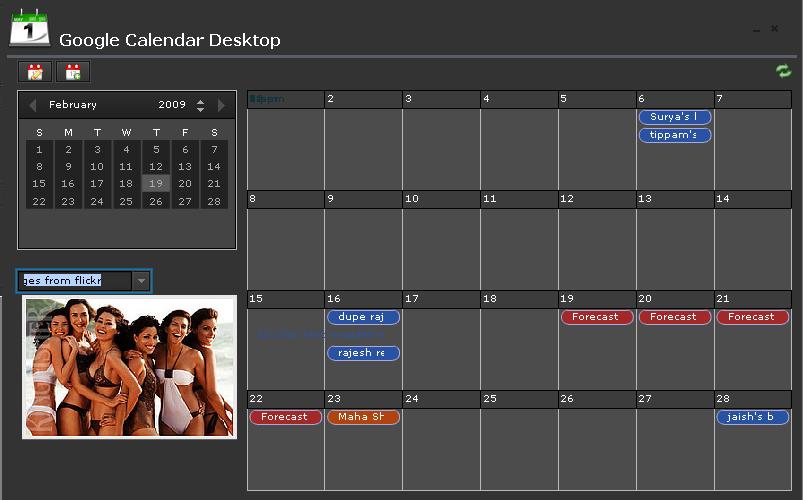
Not finding much time to work on the as3googlecalendarlib (http://sujitreddyg.wordpress.com/2009/01/29/as3-library-for-google-calendar-as3googlecalendarlib/) or the sample application using the library. I managed to create a simple API documentation for classes which should be used to consume Google Calendar service. I also created a document in which there are code samples on how to create a calendar and calendar events.
I will add more to these documents and publish a proper API documentation and yeah a sample application ASAP.
I have the sample application running with minimal features, but wanted to add more.
Snapshot of the sample application developed using this API.
URLs to the documents
API Documentation: http://as3googlecalendarlib.googlecode.com/files/as3googlecalendarlib_API_doc.pdf
Code samples: http://as3googlecalendarlib.googlecode.com/files/as3googlecalendarlib_code_samples.pdf
These days as a designer/developer rapid prototyping has become a key component to getting projects in and out the door much quicker. To this effect, many prototyping tools have surfaced over the last year or so. A new rapid prototyping tool, FlairBuilder, created in Adobe AIR has just hit the market and first looks of it look pretty impressive.
FlairBuilder is a cross-platform tool for rapid authoring of interactive wireframes and software prototypes. FlairBuilder comes with a set of 40+ (and counting) components for prototyping both web and desktop application. These are functional components and not mere images or mock-ups. A few components include a GoogleMap component, as well as YouTube or Vimeo video player, and even a WebCam.
FlairBuider looks to provide a usable solution to spending less time prototyping and more time developing. Not only does FlairBuilder make things easier for its users, its free online viewer allows your clients to view the wireframes that you have created instantly using the Flash Player plug-in.
Congrats to the author, Cristian Pascu, for taking on such an innovative project. If you happen to give FlairBuider a run through, take 5 minutes out to provide some constructive feedback. Your feedback will help push this project further in the right direction.
source: http://flashspeaksactionscript.com/flairbuilder-an-adobe-air-based-rapid-prototyping-tool/
A few weeks ago, a wrote a post detailing how to use Merapi in a Production Environment. That tutorial was primarily written to address managing Java and AIR on a Windows Platform including creating an installer that installs both the Adobe AIR Runtime, the Java-side of an application, and the AIR-side of an application. However, I realized that I was neglecting those OS X enthusiasts out there, so this article is for you guys! However, I would still recommend reading Merapi in a Production Environment first for an in-depth overview of integrating Java and AIR through Merapi as this post is only for creating a Mac bundled installer.
The first thing I noticed while trying to make a Mac installer with the bundled Adobe AIR Runtime is that there is relatively little out there that addresses this issue. While there are some resources provided by Adobe after applying for a distribution license, there were still some questions that I had to answer on my own. What will follow is a step-by-step approach that I took to create a Mac installer.
The Java installer will serve as the core of our installer. It is responsible for copying class files and jars into the Applications directory and it is also responsible for executing the Adobe AIR Runtime installer which will install both the AIR Runtime on the user’s computer (if they don’t have it already), and installing the AIR-side of the application. Much of this portion I discovered through this post and I won’t go into as much detail as Dem Pilafian covers that material very well.
The tool that I used to initially create a bundled Java app is called “Jar Bundler”. It is located in Developer/Applications/Utilities and is part of XCode. This tool allows you to specify your Main Class, any additional Classes or Jars that are part of the library, an icon, and some configuration options. When you click on the “Create Application” button, you will see that a MyJavaApp.app bundle is created. If you right-click the app bundle and select “Show Contents”, you will see what Jar Bundler created for you. In the Contents folder you will see a PList file (XML-based file which contains the properties for the application), a folder called MacOS which contains the executable, and another folder called Resouces which contains your icon and a subfolder called Java with all the Class and Jar files contained in your Java Application.
At this point you may also have realized what a pain the Jar Bundler is! If you haven’t yet, you will realize it the ump-teenth time you need to create another version of the installer. It doesn’t save an XML configuration file like Launch4j does on the PC, nor does it remember where your previous files selections were so you have to navigate through your Java application looking for class and jar files every single time. Plus, Jar Bundler does not support every application configuration option for your application. That means you have to go into the PList file and do it manually every time.
To solve this problem, I wrote a script which automatically builds the jar files I need and copies them into MyJavaApp.app/Contents/Resources/Java automatically. It also overwrites the PList file that is generated by Jar Bundler to give me more configuration options. Basically, the only thing that remains from Jar Bundler is the executable.
After you get the Java bundle set up, it is time to include the AIR portion of the application. Inside of MyJavaApp.app/Contents/Resources, create a directory called AIR. This directory will contain the Adobe AIR Runtime and MyAirApp.air. During the install process we will run the AIR Runtime and pass it a reference to MyAirApp.air to be installed with the runtime.
With the application bundle in place, we now need to generate an installer. This can be done by using PackageMaker (Developer/Applications/Utilities) or a third party app called Iceberg. I prefer Iceberg due to its intuitive user interface and step-by-step process, however the choice is up to you although I will use Iceberg throughout this tutorial.
Mac install packages are very handy and much easier to create than Windows EXE executables in my opinion. However there are a few things to keep in mind. If you have any custom welcome text, license information, or README this can be displayed in the installer as well. Iceberg allows you to specify text files for each of these three functions in the Documents section. Also, there are Perl or Bash scripts that can be executed during different stages of the install process. You can find these in the Scripts section of Iceberg in their order of execution.
Also, keep in mind that each script must return zero. If it doesn’t, the installer will determine that they have failed. For my application, I created a preflight script that checked to see if there were any previous versions of the app and then I removed them. I also created a postflight script that installed the .air application inside of the already created MyApp.air inside of the Applications directory. The script contained a couple of lines that looked something like this:
cd /Applications/myApp.app/Contents/Resources/AIR
Adobe_AIR_Installer.app/Contents/MacOS/Adobe\ AIR\ Installer -silent -location /Applications/myApp.app/Contents/Resources/AIR MyAirApp.air
Now that I have explained some of the components of a Package, let’s open up Iceberg and get started. First, create a new project and go through each of the steps customizing the installer to fit your specifications. Add any custom text files or scripts and then define where your app will be installed. I put MyApp.app under the Applications directory. When you are finished configuring the package, go to the Build menu and select Build and Run. This will allow you to test your package and scripts to see how well they work. Also, make sure to save your project when you are finished. This will keep your configuration settings as a .packproj file that you can use to make future builds.
source: http://natescodevault.com/?p=172
Benjamin Gorton, Ryan Taylor, Jeff Yamada "Adobe AIR Bible"
Wiley | ISBN: 0470284684 | 2008-10-06 | 480 pages | PDF | 4.5 MB
Download Links:
Download from RapidShare
Download from Depositfiles
Download from Uploading.COM
Today at Adobe MAX in Japan, we shared some great news about the expanding reach of the Flash Platform. We announced that Adobe AIR has been installed over 100 million times. Also, as of December, Flash Player 10 was installed on 55% of computers worldwide. Flash Player 10 is breaking all previous records for rate of adoption for Flash Player, and we expect greater than 80% penetration by the second quarter of 2009. The Milward Brown survey has details on the methodology used to determine the Flash Player penetration.
Adobe AIR is not included in the Milward Brown data yet, so I thought it might be helpful to explain our methodology. The number we announced is the count of successful initial installations of Adobe AIR -- this provides a minimum for the total install base of the AIR runtime.
What do we mean by "successful installation?"
Software installation can fail during download and also at installation time, so we only consider an installation to be successful when it can be confirmed by code running after the installation has been completed.
For example, the majority of AIR runtime installations occur at the time the first AIR application is installed by a user -- usually through the use of an "install badge" using AIR's seamless install feature. An install badge detects whether the runtime is installed on a user's system before attempting to install the application. If the runtime is not installed, it will be downloaded and installed before the application is installed. In most cases, a user usually launches the app once the installation process has been completed. Once the application is launched, the AIR runtime checks on start-up to see whether a new version of the runtime is available. This request confirms that the runtime was installed correctly and that an application has been launched.
One thing the number of successful installs does not tell us is where are all the installs are coming from. Some are coming from people who come to Adobe.com to download the runtime, but the vast majority are being driven by great, popular applications. Some of the most popular include:
Are there others? We'd love to know about it. If you don't mind sharing -- put a link to your application below and let us know how many people have installed it...
For customers who want to protect their content, Adobe said the open RTMP specification won’t include its secure RTMP measures, nor will the license that accompanies the specification allow developers to circumvent such measures.
However, developers will be free to use their own technological measures to secure content. The RTMP specification does not provide any requirement or restrictions on a developer’s own measures to secure content.
The spec should be posted at www.adobe.com/devnet/rtmp sometime this half.
Posted by Rn@ At 6:34 AM
Labels: Adobe Air, Adobe Flash, Adobe Flex
Just uploaded the Flex Camp Chicago 2009 presentation. The topic covered getting started with Adobe AIR as well as AIR 1.5 / Flash 10 capabilities. It was a great event and I enjoyed presenting as well as listening to other speakers.
http://www.slideshare.net/eladnyc/getting-started-with-adobe-air-15-presentation
Posted by Rn@ At 6:16 AM
Labels: Adobe Air, Adobe Flex
Main Screen, Class List, Class List Filtering, Class API Documentation, About Screen
The ActionScript 3 API Reference has only been tested on iPhone OS 2.2.
Posted by Rn@ At 6:01 AM
Labels: Adobe Air, Adobe Flash, Adobe Flex
Wiley | 2008-10-06 | ISBN: 0470284684 | 480 pages | PDF | 4,7 MB
Adobe AIR is a revolutionary technology that blurs the line between the desktop and the web. The AIR Bible will get developers up and running building simple AIR application, then take them through all aspects of the new API. The authors have a wealth of experience in building Rich Internet Applications using Flex, Flash, HTML, and Ajax. They will bring their experience to the table walking the reader through application programming topics and demystifying the techniques developers use to build the kind of complex application that readers are sure to want to build with this exciting new technology.
Lynda.com - Adobe AIR Essential Training | 361MB
In AIR Essential Training, instructor David Gassner shows how to use the Adobe Integrated Runtime (AIR) and associated development tools to create dynamic applications. David demonstrates how to build and deploy desktop applications that run equally well on Windows and Mac OS X. He covers creating applications in Flex Builder 3, Dreamweaver CS3, and Flash CS3; working with HTML and PDF documents; creating a seamless installation experience; and more.
Download Links:
http://rapidshare.com/files/166875673/LCAAET.part1.rar
http://rapidshare.com/files/166877266/LCAAET.part2.rar
http://rapidshare.com/files/166878636/LCAAET.part3.rar
http://rapidshare.com/files/166879523/LCAAET.part4.rar
Posted by Rn@ At 1:10 PM
Posted by Rn@ At 1:38 PM
Labels: Adobe Air, Adobe Flash
Adobe AIR has grown immensely popular over the past months. With its popularity, many new applications have been released. During this period, the following 10 issues have been the mistakes I have seen most often among developers. Hopefully, this list can help you avoid the same mistakes when building your next AIR application.
Many AIR developers have a primary platform that they use as their development environment. In some cases, developers have not spent a great deal of time on other platforms, and they may not know how users on those platforms interact with desktop applications. Developers working on Windows, for example, need to have a good understanding of the user experience in respect to the Dock and the Application menu on the Mac platform, and Mac developers need to understand the user experience with the task bar and application window menus on Windows. Failure to understand these concepts can lead to applications that feel awkward and unnatural to the end user.
Consider this example: A Mac developer might place a Preferences menu item in the application menu for his AIR application. However, for the Windows version of the AIR application, he fails to add this menu item to each window menu. If the application were only tested and developed on a Mac this error might not get caught.
Some developers don't have access to other systems, but virtualization helps to eliminate some of these issues by providing the developer access to multiple operating systems on a single computer. One of the most useful tools in creating effective native applications is to have a regular user of another platform evaluate your application for both functionality and usability. By taking this extra step, you can catch most platform-specific issues in your AIR application.
One of the most important changes in the transition from the web to the desktop is the way that updates are handled. No longer does the user "come to you" to get your application, but rather you send the application to the user. Depending on how you configure your application, users might not ever have to return to your site to get the latest and most secure version of your application.
Previously, it took a little bit of work to develop an effective update mechanism for your AIR applications. However, Adobe has done most of the work for you with the Adobe AIR Update Framework. Adobe even gives you the option of using two different flavors of this framework: one includes a default user interface, and the other handles the logic and allows you to create a custom user interface that fits with your application.
Anytime you send a version of an AIR application to someone outside of your core development team, you ought to have some update mechanism in place (see Figure 1).
Figure 1. Adobe AIR Update Framework
The AIR runtime uses two factors to determine the signature of an application: the application ID and the publisher ID. These values become very important when you distribute your application. If you change one of these pieces of information, an end user might be unable to update her version with the newer version. This could result in the user installing two different versions of your application, which, in turn, could result in the update version being unable to access any application-specific data from the first installation. In either situation, the end user might get frustrated enough to not use your application again.
To avoid this situation, you need to settle on a few things when you create your application. First, you need to set an application ID in the application descriptor file. This application ID is invisible to the user and will not change. It does, however, need to be consistent. Second, you should always use the same signing certificate when creating your application. The AIR packager uses the signing certificate to determine the publisher ID. If you do need to use a new signing certificate, the AIR developer tools provide a means to do so. For more information, refer to the article "Signing an AIR file to change the application certificate" in the AIR documentation for Ajax, Flash, and Flex developers.
One of the advantages of Adobe AIR is the online/offline capability for applications. Many applications might not need or use this functionality. In most cases, this will not cause any problems, unless going offline breaks the application.
Every AIR application that interacts with an online service needs to be tested while the development environment is offline. This way you can determine where you need to place warnings or disable user interface elements so that the end user understands what functionality is not available while the application is in an offline mode.
If you want to expand your application to include specific offline functionality, AIR has APIs to work with the local file system, the SQLite embedded database, and even a secure data store. By utilizing these APIs you can create applications that can easily store information on the user's computer to create a seamless offline experience. For an enterprise solution, the newest version of LiveCycle Data Services provides online/offline synchronization of data for AIR inside of Flex based AIR applications. For more information, see Christophe Coenraets' blog post: Offline Synchronization using AIR and LiveCycle Data Services.
The AIR APIs are powerful and provide a great deal of functionality to developers. However, I have often found that there are pieces of the API that some developers are not familiar with. For example, I have noticed developers trying to encrypt data in a text file instead of using the EncryptedLocalStore functionality, or storing delimited data in a text file when using the embedded SQLite database would provide better functionality.
This oversight can be extremely common in web applications that are ported to Adobe AIR. One of the great things about AIR is that many of these applications can be ported with little or no changes to the code. However, in some cases the application could benefit greatly from using some of the AIR APIs to add functionality that enhances the user's experience.
To get a better grip on the APIs provided in AIR, you can review the AIR documentation and sample applications.
Custom chrome puts a lot of power in the hands of developers and designers. By using it, you are altering the way a user interacts with an application. If this custom chrome has a consistent feel with the standard operating system chrome, users will be able to interact with it seamlessly. However, if users cannot easily maximize, minimize, or close an application window, the chances of them using your application on a regular basis are very slim.
Having a single look across all platforms certainly has its benefits. Using the standard chrome will cause the application to appear different on each platform. Custom chrome gives a single branded experience across all platforms, and if it can be accomplished without confusing the user, it is a powerful tool. Some applications, such as the EBay Desktop AIR application, give the user the option of the standard or custom window chrome. As long as you approach custom chrome with caution and keep the user's experience in the forefront as you develop your application, custom chrome will be an asset. For more information, refer to Ethan Eisman's article Adobe AIR and the experience brand, Lee Brimelow's Creating custom-chrome AIR applications in Flash CS3, as well as the AIR Quick Starts for Flex, Flash, and Ajax.
Developers sometimes assume that everyone's system is configured in a similar way to their own. This can be dangerous when distributing packaged AIR applications to your end users. First, you cannot guarantee that users have the Adobe AIR runtime installed on their computers. Second, you cannot assume that the server delivering the file will know how to properly handle packaged AIR files.
Luckily, these issues can both be handled by properly configuring and using the seamless install badges for Adobe AIR. This allows users who have Adobe Flash Player installed to download your application as well as the AIR runtime (if needed). It will then install the necessary elements. This takes the guesswork out of AIR application distribution. There are currently two versions of the badge that can be used: the original design (see Figure 2) and a new version designed by Grant Skinner (see Figure 3) that is on Adobe Labs.
Figure 2. Original install badge design
Figure 3. Updated install badge design
For more information, refer to my article, Deploying AIR applications seamlessly with badge install and to Additional Seamless Install Badge with new look and feel on Adobe Labs.
Many AIR applications interact with other services on the Internet. In many of these cases, the user inputs sensitive information such as a username and password to access these services. This is just one instance where secure data is stored by an AIR application. Anytime you store sensitive information for an AIR application, it needs to be encrypted.
Many developers have confused the security of different storage options within AIR. Some developers have mistakenly assumed that information with the local database is secure, but that information can be accessed by any application that can read a SQLite database. Essentially, the only truly secure way to store information with the AIR API is to use the EncryptedLocalStore class. This uses platform-specific encryption to store information, and it can (optionally) also be configured to be accessed by a single AIR application only. Some developers have created custom ways to encrypt information in local files, but in almost all cases the EncryptedLocalStore class is your best option. For more information, see Kevin Hoyt's article Using the encrypted local store feature.
Some actions span almost all applications on a specific operating system. For example, Windows users can be sure that in almost every application objects can be copied by using the Ctrl+C keyboard shortcut. In addition, Mac users expect the same behavior with the Command+C shortcut. These are the type of actions that need to be preserved so that the user can have a familiar experience when interacting with your application. If you changed the Copy keyboard shortcut to a different key combination, it would only cause confusion and decrease usability.
For example, if you are dealing with SWF content, the normal keyboard shortcuts for copy, cut, and paste are enabled in TextInput, but they are not enabled in TextArea (the default shortcuts work for all types of text inputs in an HTML AIR application). In this case, you would need to be sure that this functionality was preserved for the user by manually adding them.
When dealing with keyboard shortcuts, review other applications to ensure that if you are performing a standard action, you use the common keyboard shortcut for that specific platform. In addition, if certain items appear in application or window menus (such as Cut, Copy, and Paste) be sure that those items are present and indicate the relevant keyboard shortcut.
Developing applications for the desktop can be a liberating experience. By breaking out of the browser, you are freed from many constraints. However, the temptation is to not worry about issues such as memory and processor utilization. These issues become compounded when you utilize resource-intensive functionality within AIR, such a
s custom chrome and window transparency. Just as with a web application, every AIR application should be tested and profiled for system resource utilization. If you are creating an AIR application in Flex Builder, you can use the Profiler to view your application's resource utilization over time.
Remember that your AIR application has the ability to slow down the entire desktop experience for the end user. Your AIR application needs to use only the amount of resources that make sense. If your application performs complex tasks, a high utilization of system resources might make sense. However, if your application performs a relatively simple task, the end user will not be satisfied with a high usage of system resources. For more information, refer to Using the Profiler in LiveDocs.
Depositfiles